
WooCommerce merchants can now install the RetailerBoost plugin from WordPress.org. Connect your store, install tracking and see your RetailerBoost reports inside WordPress.
If you have not come across RetailerBoost before, here is the offer: we fund and manage Google Shopping ads for your products. You pay an agreed commission on orders attributed to our ads. There is no retainer, monthly fee or setup fee.
Google Shopping ads show product information such as a photo, price and store name to people looking for products on Google. Your products need an eligible Google Merchant Center feed. RetailerBoost handles the advertising; the new plugin connects your WooCommerce store to the service.
What the WordPress plugin handles
- Connect your store to a new or existing RetailerBoost account. The plugin configures the store tracking ID after you approve the connection.
- Install storefront tracking across your WordPress site, following your store’s consent configuration.
- Send paid-order updates from WooCommerce, including delayed payments that complete after checkout. A customer does not have to return to the thank-you page for that update to be sent.
- View attributed orders, revenue, commission, ad impressions and clicks inside WordPress. You can also see setup status, Stripe invoices and available product and country information.
- Add a payment card securely through Stripe before campaigns can go live. Saving a card does not create an invoice or collect a payment.
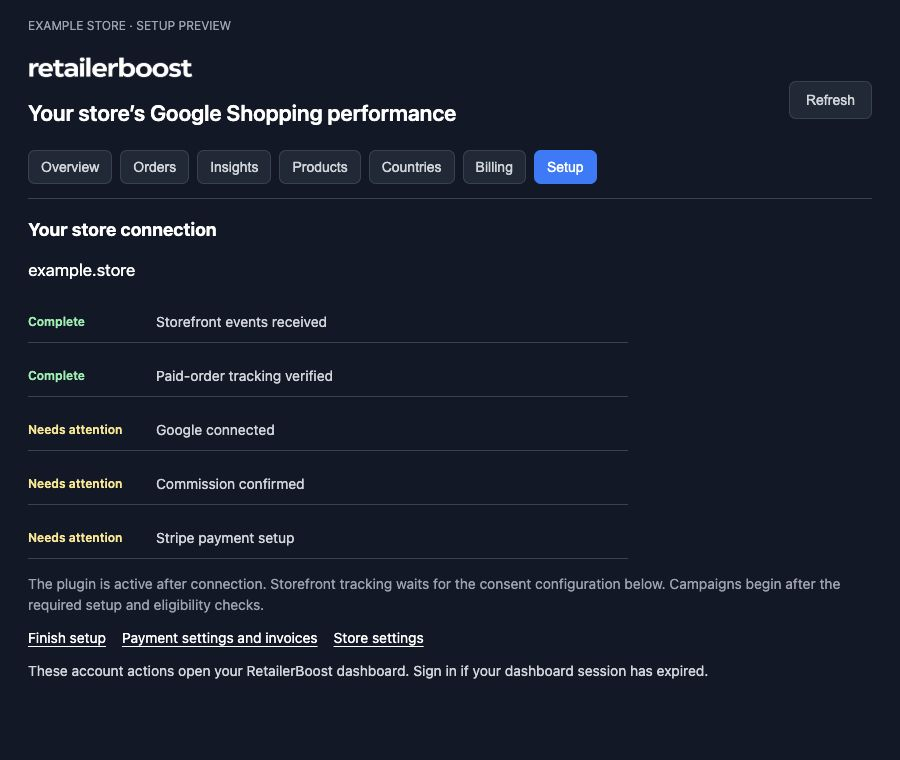
Google authorization, advanced product permissions and some account actions open your RetailerBoost dashboard. Your account and store remain the same across both places.
How to connect your WooCommerce store
- Install and activate RetailerBoost from the WordPress plugin directory. WooCommerce must be active on your store.
- Open WooCommerce > RetailerBoost and choose Connect. Create your RetailerBoost account, or sign in to the account that already owns your store.
- Verify your account email and approve the store connection. The plugin configures your tracking ID automatically.
- Review your consent settings, connect Google Merchant Center, confirm your commission rate and save your payment card through Stripe.
- Complete the tracking and eligibility checks. Advertising can begin after the required checks are complete.
If you start by creating an account on retailerboost.com, install the plugin and sign in with that same account when you connect it. A matching store you already own keeps its existing ID and reporting history.
New to Google Shopping?
You do not need an existing Shopping campaign to use RetailerBoost. For an eligible store, RetailerBoost can create and manage campaigns using your product catalog. We fund the ad spend. You pay your agreed commission on attributed orders.
Already running Shopping ads?
RetailerBoost can run targeted campaigns alongside campaigns managed by your team or agency. The campaign setup can focus on products that need additional coverage. You choose the appropriate campaign route during setup.
What you pay
The WordPress plugin is free to install. The RetailerBoost service charges the commission rate you agree to before advertising begins. There is no RetailerBoost retainer, monthly fee or setup fee. We fund the advertising spend.
Direct WooCommerce stores save a payment card through Stripe as part of onboarding. Card details stay with Stripe.
If you already work through an affiliate program, the affiliate integration route keeps tracking and settlement with the supported network and program. This plugin connects WooCommerce stores using RetailerBoost directly.
Compatibility and requirements
The plugin supports WordPress 6.4 or later, WooCommerce 8.3 or later and PHP 7.4 or later. Testing covers classic checkout, Checkout Blocks, legacy order storage and High-Performance Order Storage (HPOS), including paid-order updates, retries and reconnection.
Your Google Merchant Center product feed still needs to be in place and suitable for advertising. This plugin does not create or synchronize a product feed. Headless checkouts, custom gateways and nonstandard consent setups may need additional integration work.
Install RetailerBoost for WooCommerce
Install the RetailerBoost plugin from WordPress.org, or read the WooCommerce setup overview before connecting your store.